There is no setup project. You choose a role, request access, connect the accounts it needs, and start handing things over. It works each job through to done, asks you before anything that matters, and shows you the record.
Hiring, step by step
- Step 1
Choose the role
Personal Assistant, Executive Assistant or Chief of Staff today, each including the one before; Recruiter, Short Stay Manager or Brand Deals Manager in early access. Every role runs on the same platform.
Today - Step 2
Request access
Create an account, then enter an invitation code or tell us what you need. The Atona team reviews every request and replies by email.
When you request it - Step 3
Connect what it will run
Once you’re in, name your employee, connect your calendar and the inbox it will run, and teach it a few standing rules.
Once you’re in - Step 4
Wake up to its first brief
The next morning: what it handled overnight, what it drafted for you, and the decisions that need you. Then a record of every action.
The next morning
What setup creates
A working employee that already understands your calendar, your inbox and the people you talk to most: reading your mail, drafting replies for your approval, and delivering your morning brief.
Its own identity, where the role has one
An Executive Assistant or Chief of Staff gets its own address at assistant.atona.ai once your email is verified, and its own number the first time a task needs one, after you verify your mobile. A Chief of Staff also reaches people on WhatsApp, through Atona’s business number. Every ladder role has its own computer for errands on the web, each approved before it starts. A Personal Assistant works in your own inbox, with no address or number of its own.
Invite-only, in small batches.
Atona is invite-only while we onboard in small batches. Requesting access starts with an account, which stays inactive until you’re let in. An invitation code from an Atona member lets you in at once; without one, you tell us what you need and the Atona team replies by email. Once you’re in, you choose your employee, name it, connect your calendar and give it its first task.
What to have ready
The calendar and inbox it will run. Atona works with Gmail, Outlook, Google Calendar and Microsoft calendar. For an Executive Assistant or Chief of Staff, your mobile number, which you verify before it gets a number of its own.
What happens after you request access
- Create your account. With Google, Apple or email. It stays inactive until you’re let in, so nothing runs and nothing is set up yet.
- Enter a code, or tell us what you need. An invitation code from an Atona member lets you in at once. Without one, answer a few questions; it takes about two minutes.
- Hear back by email. The Atona team reviews every request and replies by email. You can enter a code at any time while you wait.
- Meet your employee. Choose its role, give it a name, connect your calendar and hand it a first task. Its first brief arrives the next morning.
Say it once. It’s handled.
Chat, forward an email, or describe a plan in plain language. Things people delegate in the first week:
- “What’s on my calendar this week?”
- “Reply to anything from Sarah while I’m in this meeting.”
- “Brief me on tomorrow before I go to bed.”
- “Schedule a 30-minute with Alex next Tuesday.”
- “Book a table for six on Friday and text everyone.”
- “Chase the signed SOW from Cascade every week until it lands.”
One Executive Assistant across email, calls, texts and calendar, and the record of what it did today.Atona for iOS · example data
You approve. It records.
Two identities, two defaults. From your own inbox, replies wait for your approval unless you let routine ones go. From its own address and number, it carries out what you asked for and copies you, unless you switch outreach to approval.
Drafts first in your inbox
From your own inbox, replies wait for your approval by default. You can let routine ones go on their own, or turn sending off.
Its own identity, where the role has one
An Executive Assistant or Chief of Staff writes from its own address and number, signed as your AI assistant, and copies you on outreach. A Personal Assistant works in your own inbox; the specialists, in the business accounts they’re set up with.
Sensitive mail stays out
In your connected inbox, mail from banks, tax offices, insurers, healthcare providers and law firms is recognised and skipped before the AI that reads and drafts sees it. A business inbox a specialist runs is read in full, because that mail is the job.
Stop anything, any time
Cancel a plan, switch outreach to approval, or turn off sending from your inbox, whenever you like.
A record of every action
Every reply drafted, sent or held is there to review, with the reason it made that call, and a weekly account of time saved.
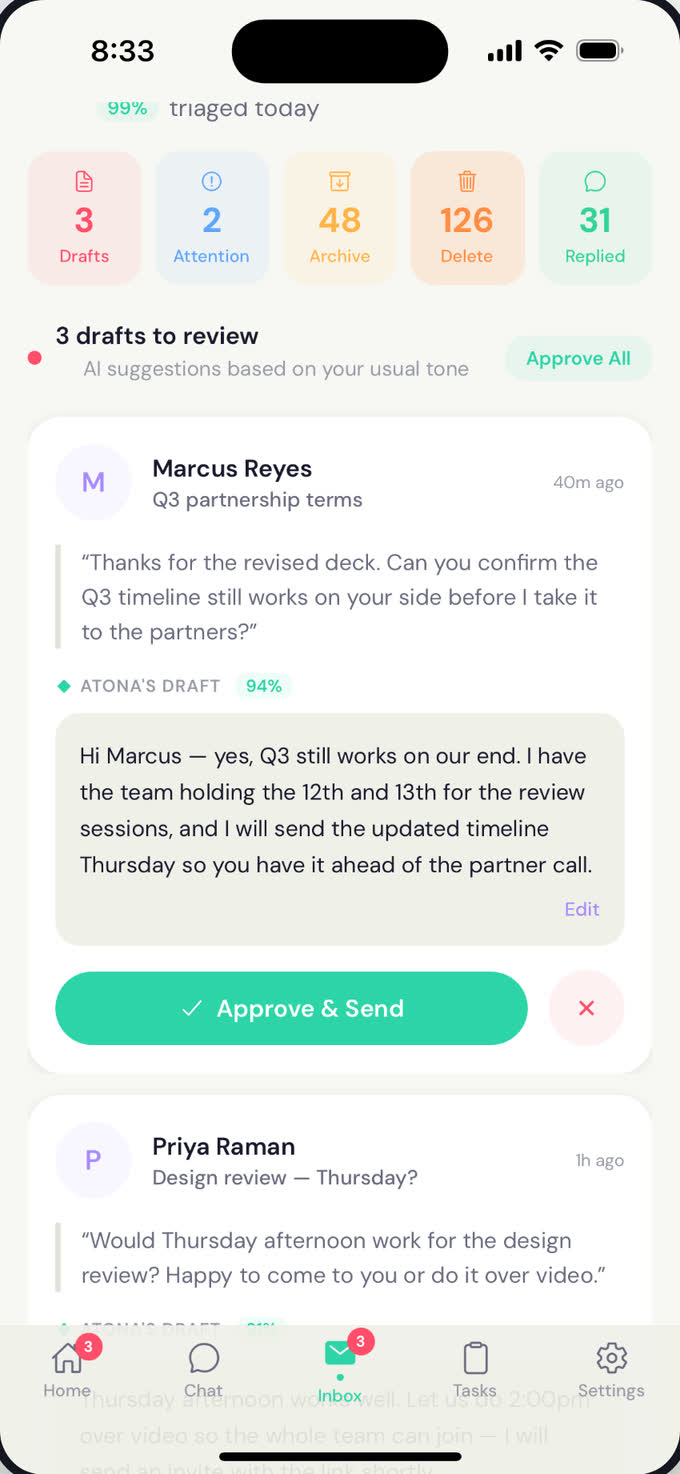
From your own inbox, replies wait for your approval by default. Each draft is one tap from sent.Atona for iOS · example data
One platform. Every role.
You hire employees. Each works in a workspace: a personal one for your own life, a business one for a company (the specialists work only there), and team workspaces in early access for groups. Every workspace runs on Atona: one memory, approvals and the action record. That is why every role is supervised the same way.
Every part, explained.
Fifteen short guides on exactly what your employee does in each channel, what it will not do, and the controls you have.
Before you start.
How do I get access?
Create an account, then enter an invitation code from an Atona member, or tell us what you need in a few questions. The Atona team reviews every request and replies by email.
What happens once I’m in?
You choose your employee’s role, give it a name, connect your calendar and hand it a first task. Connecting email is a secure sign-in that takes about thirty seconds. Its first brief arrives the next morning.
What does it ask me before doing?
By default, every reply from your own inbox waits for your approval. Every errand on its computer waits for your go-ahead, and purchases, deposits and card holds always wait for you. Outreach you ask for goes out from its own address with you copied, unless you switch outreach to approval.
What will it never do?
Read mail in your inbox from banks, insurers, healthcare providers or law firms: it is skipped before the AI that reads and drafts sees it. See your passwords: you sign in to sites yourself. Share your data with another account.
Can I stop it?
Yes. Cancel any plan, switch outreach to approval, or turn off sending from your inbox at any time.
Where does it work?
iOS and the web. Android is in beta. A Mac bridge adds iMessage.
Which role should I start with?
If you are not sure, an Executive Assistant: it does everything a Personal Assistant does, plus its own address and number, your meetings and scheduling with other people. A Chief of Staff does all of that and more, and moving up keeps everything it has learned.
Make your first AI hire.
Atona is invite-only while we onboard in small batches. Request access with an invitation code, or tell us what you need and we’ll review it.
Already have access? Sign in · Android in beta.